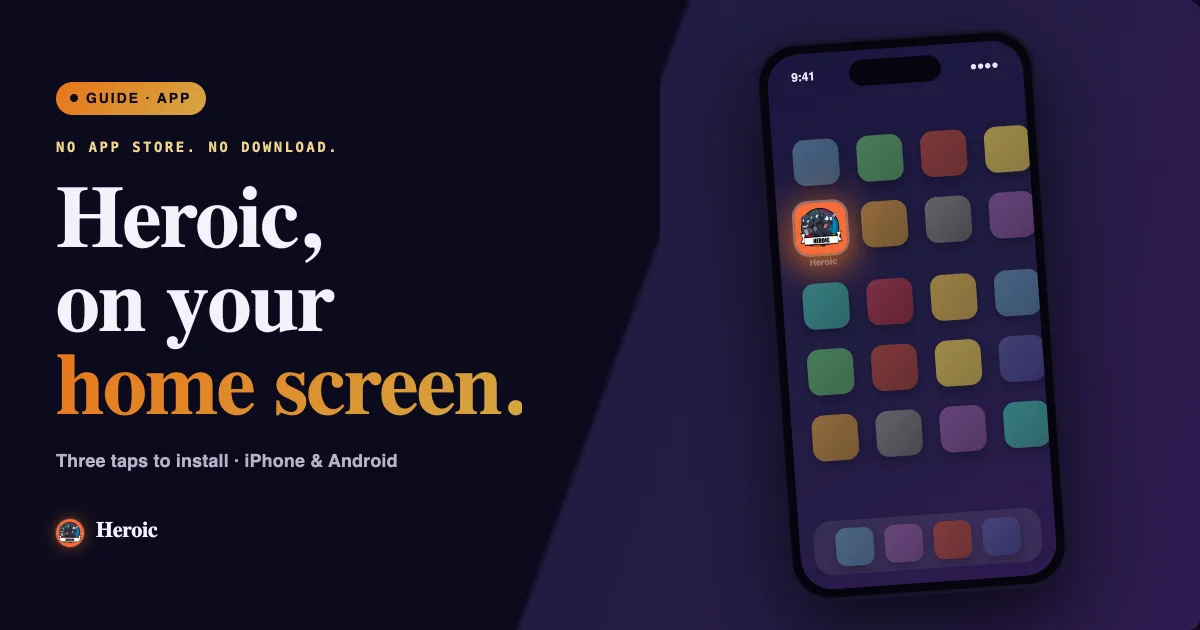
We have an App! Kinda...

Friday, March 20, 2026
Our new Heroic website is already awesome — but here’s something even cooler: you can save it to your phone so it acts like a real app.
No app store. No downloads. Just a clean icon on your home screen that opens Heroic in one tap.
Below are simple, step-by-step instructions for both iPhone and Android so you can set it up in seconds.
iPhone Instructions (Safari)
This works best using Safari on iOS.
- - Open Safari and go to the Heroic website.
- - Tap the Share icon (square with an arrow pointing up).
- - Scroll down and tap Add to Home Screen.
- - Choose the name you want to appear under the icon (for example, “Heroic”).
- - Tap Add in the top-right corner.
You’ll now see a Heroic icon on your home screen. Tap it anytime to jump straight into the site, full screen, without the browser bar.
Android (Chrome)
These steps use Google Chrome, but most Android browsers have a similar option.
- - Open Chrome and go to the Heroic website.
- - Tap the three dots in the top-right corner.
- - Select Add to Home screen or Install app.
- - Confirm the name you want for the icon (for example, “Heroic”).
- - Chrome may ask you to drag the icon to your home screen, or it will place it automatically.
Just like that, you’ve got a Heroic “app” ready to launch anytime.
Why This Is Worth Doing
- - It opens faster than typing the URL.
- - It feels like a native app, complete with its own icon.
- - You’re always one tap away from decks, rules, updates, and everything Heroic.
If you run into any issues or have ideas for making the experience even more app-like, we’d love to hear from you. This is just the beginning of what we want Heroic to be on your devices.