How to Import Your Lorcana Collection from Dreamborn

Saturday, April 18, 2026
Track every card you own right here on Heroic. By importing your collection from Dreamborn.ink, you'll be able to see which cards you own while building decks, browse your collection with filters, and manage your card inventory.
Here's how to get set up in just a few minutes.
Step 1: Make Your Dreamborn Collection Public
Your Dreamborn collection needs to be set to public so our site can read it.
- Go to dreamborn.ink and log in
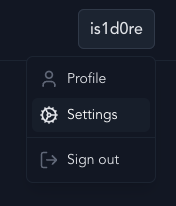
- Click your username in the top-right corner to open the dropdown menu
- Select Settings
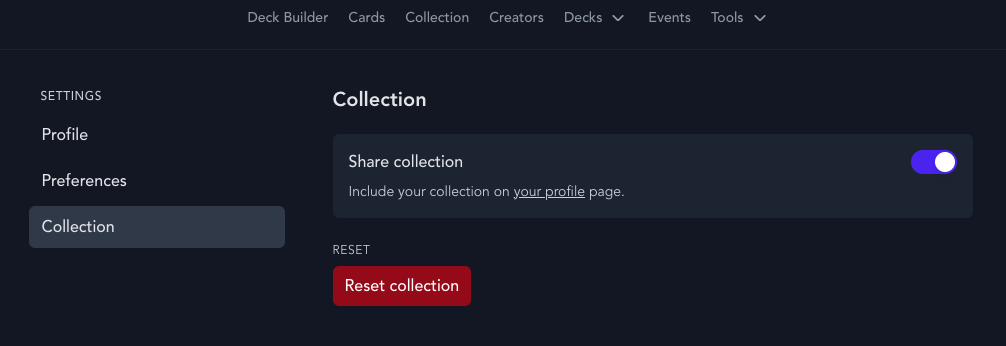
- In the left sidebar, click Collection
- Toggle "Share collection" to on (the toggle should turn purple)
Step 2: Copy Your Dreamborn Profile URL
- On the same Settings > Collection page, click the "your profile" link (the underlined text that says "Include your collection on your profile page")
- This opens your public collection page in a new tab
- Copy the URL from your browser's address bar — it will look something like:
https://dreamborn.ink/users/yOTsdisAumWqkKWx033lDicgCWo1
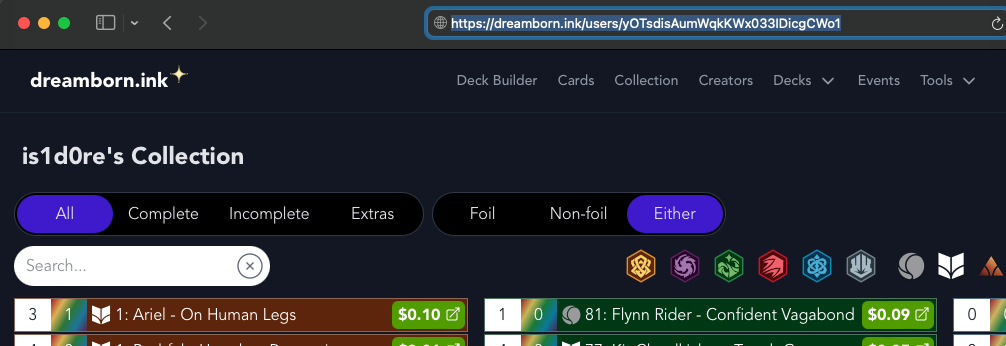
You'll paste this URL into our import tool in the next step.
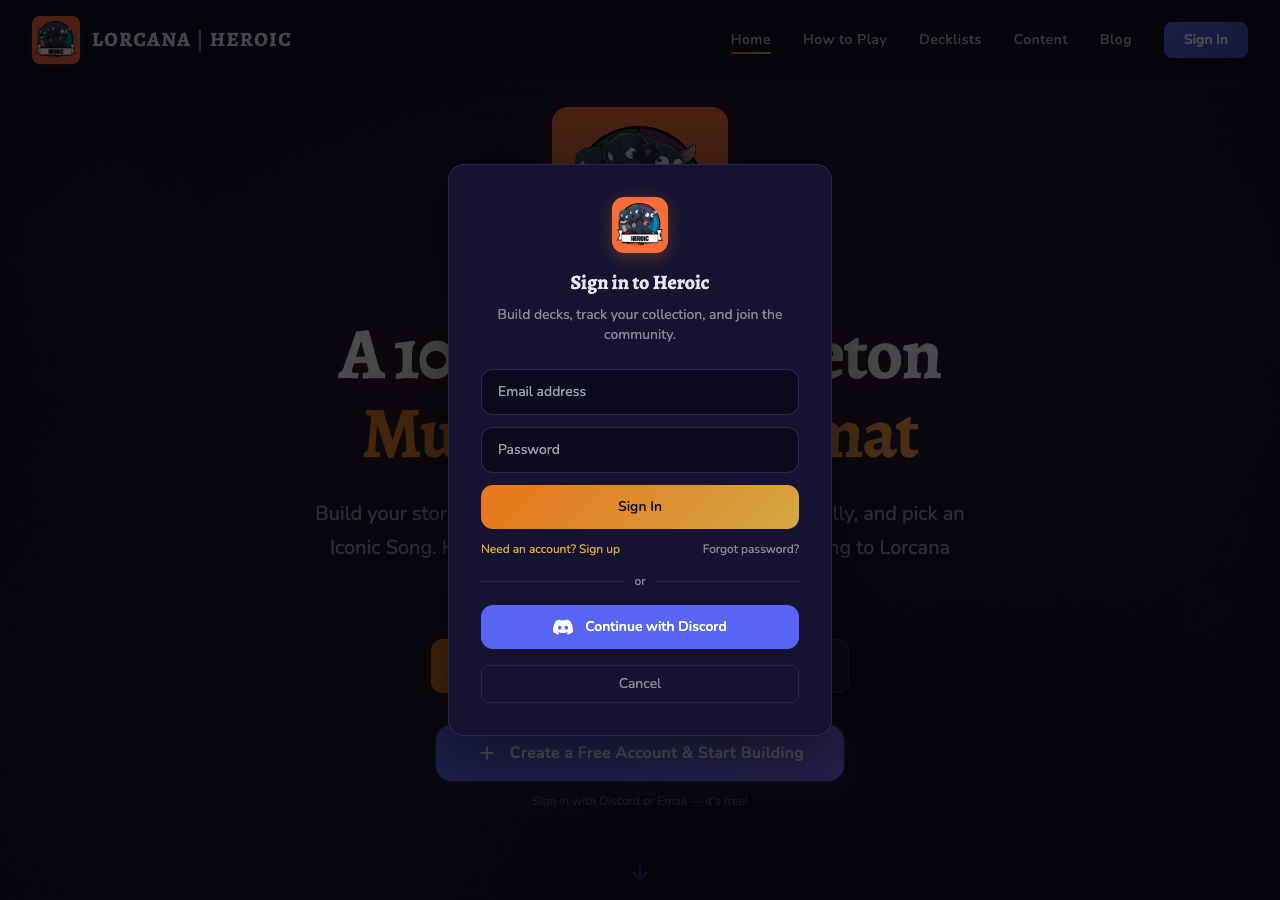
Step 3: Sign In to Heroic
- Head to the Heroic website and click the Sign In button in the top-right corner
- Sign in with your email or Discord account
Step 4: Import Your Collection
- Click your avatar in the top-right corner and select Profile
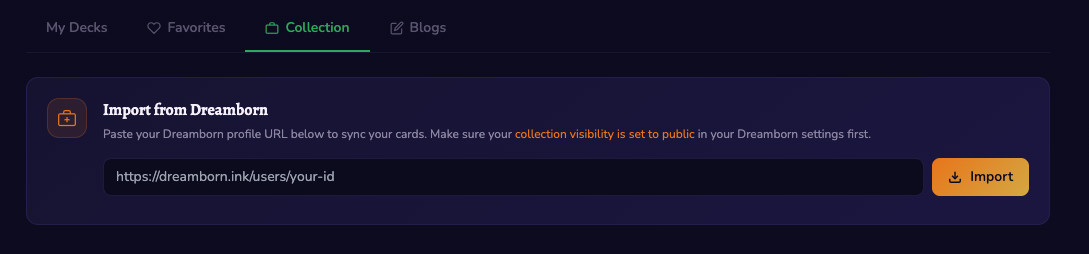
- On your profile page, you'll see the "Import from Dreamborn" section at the top
- Paste your Dreamborn collection URL into the input field
- Click the Import button
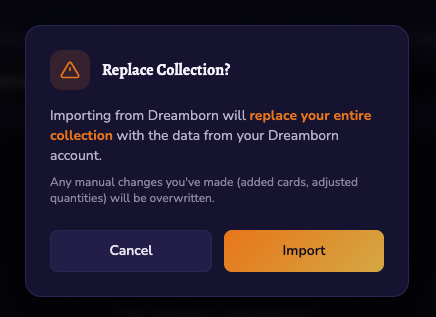
- A confirmation dialog will appear warning that importing will replace your existing collection — click Import to confirm
- Wait a few seconds while your cards are synced — you'll see a success message showing how many unique cards were imported
Step 5: Browse Your Collection
After importing, switch to the Collection tab on your profile to see all your cards.
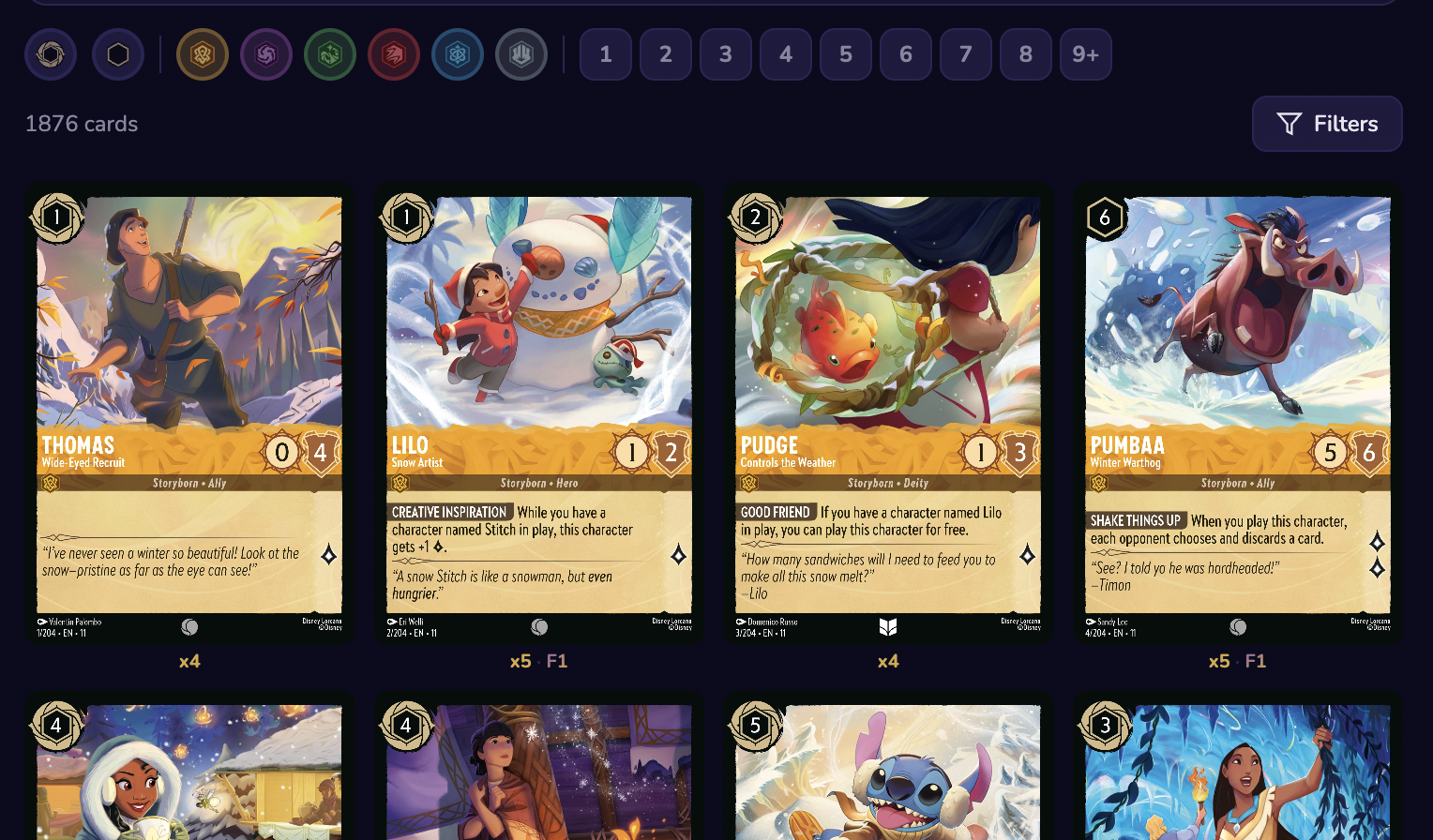
You can:
- Filter by ink color using the color buttons
- Filter by cost (1 through 9+)
- Filter by type, set, and rarity using the Filters panel
- Search for specific cards by name
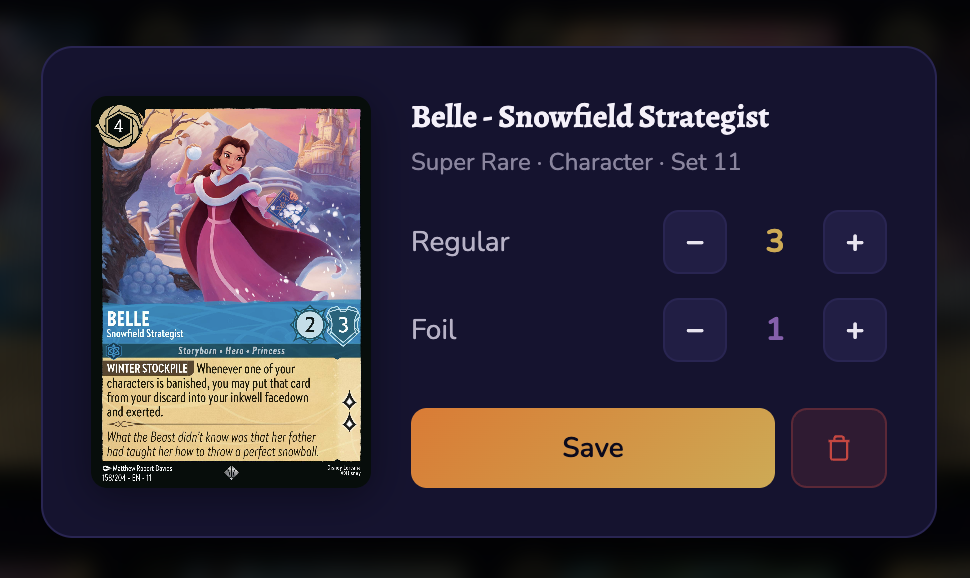
- Click any card to adjust quantities or remove it from your collection
Clicking a card opens the card manager:
Step 6: Use Your Collection in the Deck Builder
Head to the Deck Builder and your collection data will automatically appear on every card:
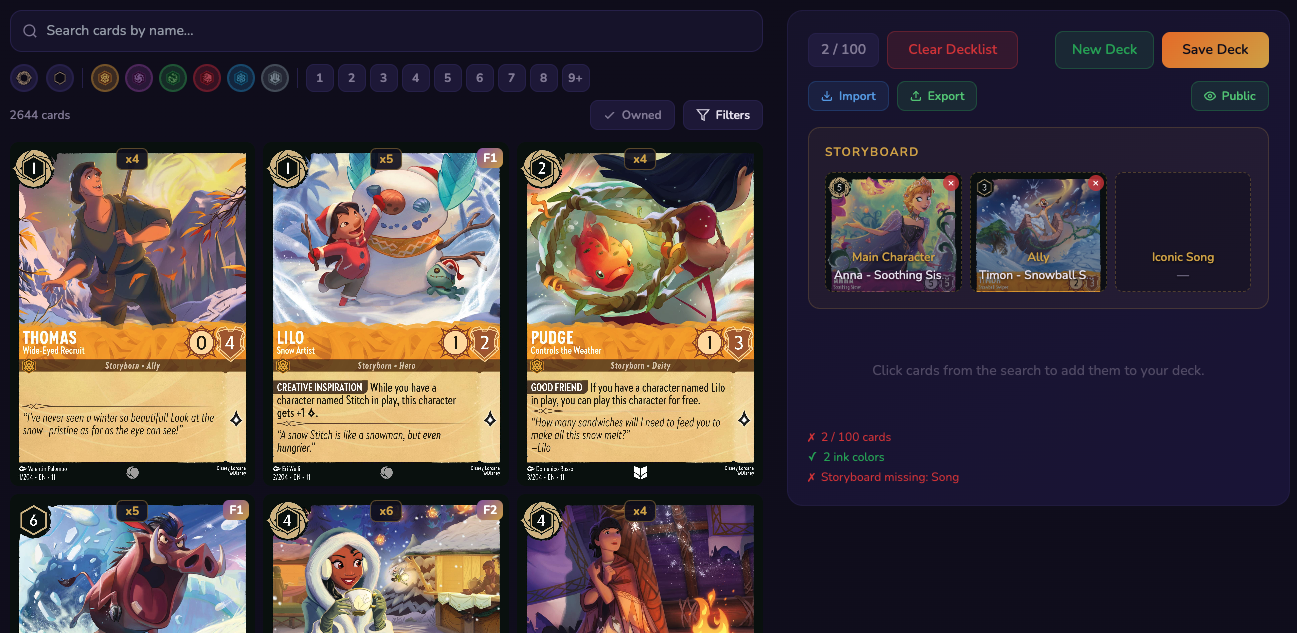
- Cards you own show a gold quantity badge (e.g.
x3) - Foil cards display a purple-gold badge (e.g.
F1) - Cards you don't own appear dimmed with a dark overlay
- Use the Owned filter toggle to show only cards in your collection
This makes it easy to build decks with cards you actually have.
Troubleshooting
"Your Dreamborn collection is not public"
Go back to Dreamborn Settings > Collection and make sure the "Share collection" toggle is enabled.
Missing cards after import
Some promo or special edition cards may not map correctly between Dreamborn and our database. You can manually adjust quantities by clicking on any card in your collection.
Wrong quantities
If a card shows incorrect quantities, click it and use the +/− controls to fix it. Your changes are saved instantly.
Re-importing
You can re-import anytime — importing again will replace your entire collection with fresh Dreamborn data, overwriting any manual changes you've made.